 Demo






Do you regularly use LinkedIn? If so, you know that links play an important role there. Whether it’s to easily share your profile, showcase your expertise with a URL to your personal website, or maximize the impact of your posts, you need to understand how to use these different links and how to leverage their full potential.
This guide has been created by the marketing experts at URLR to help you make your LinkedIn strategy an asset for your business. It guides you step by step to optimize these three key uses of URLs on LinkedIn. Simple, clear, and pragmatic, it will help you gain visibility, streamline your interactions, and boost your network, without unnecessary jargon or technical complexity. Here we go!
Your LinkedIn profile link: how to find, personalize, and share it
It’s the LinkedIn URLs that circulate the most, whether they are personal or business profiles. You see them often, but do you know how to take advantage of yours? ⬇️
What is a LinkedIn profile link?
It’s the unique URL that leads directly to your public profile on the platform. It’s a customizable web address that you can share to facilitate contact and enhance your digital presence.
How to find and customize your profile link?
To find this URL, log in to LinkedIn, click on your profile photo, and then click on “View Profile.” Your URL will then appear in the address bar of your browser. You can also access “Edit public profile and URL” in the settings to customize this URL, replacing the default generated numbers and characters with a simple, professional name.
The best ways to share this link
Once customized, you can share this link in multiple ways: in the body or signature of an email, in your SMS campaigns, on your digital business cards, in the contact section of your CV, or directly via a LinkedIn message.
💡 Expert Tip: To take customization a step further, you can use our link shortener. You will then access statistics and more advanced features. Discover below how to level up with shorter URLs.
Place a link on your LinkedIn profile to showcase your professional world
LinkedIn is a fantastic network for boosting your visibility. However, once your prospect is connected, you will certainly want to guide them to continue their visit on your own digital assets: websites, landing pages, or demo bookings, for example. Find out how to lead your visitors to your own sites.
Add a link to your website in the Contact Information section
LinkedIn makes it easy to integrate your website URL directly into the Contact Information section of your profile. To do this, log in to your LinkedIn account, go to your profile, and click on “Contact Information” in your introduction section. In the window that opens, click the “Edit” icon and select “Add a website”.
Then, copy and paste the URL of your site into the designated field and choose the site type (personal, business, blog…) from the dropdown list. Don’t forget to save your changes.
Here are some examples of relevant links you might add:
- a blog detailing your expertise, vision, or to delve deeper into a topic
- an online portfolio for your work or your achievements
- the company’s website or a commercial landing page for your offers or services
- an appointment scheduling page for freelancers and consultants
- a demo booking page for SaaS
Use the custom button on LinkedIn (for Premium members)
LinkedIn offers its Premium members the option to add a custom button on their profile, called “Visit my website.” This button acts as a visible call to action (CTA) directly on your page, allowing visitors to easily access an external site, portfolio, online shop, or any other professional page.
To add this button, log into your LinkedIn profile, click on the edit icon in the introduction section, then look for the “Custom button” option. Select the “Visit my website” button from the suggested options, then insert the URL of your choice. You can choose different types of CTAs such as “Visit my shop,” “See my portfolio,” “Book an appointment,” etc.
This button appears not only on your profile but also in LinkedIn search results, your messages, and your news feed, increasing the visibility of your link. It can be modified or removed at any time through your profile settings.
This feature transforms your profile into a well-rounded sales page through a consistent CTA button aligned with the visitor journey you’ve designed for them. You guide your prospect to where you want them to go, more directly and effectively.
Our marketing tips for an effective link on your profile
For the link on your LinkedIn profile to become a lever in your acquisition strategy, it’s not enough just to add it; you also need to personalize it wisely. Adopt a clear and engaging message around this link, choosing wording that reflects your value proposition and captures the attention of your visitors.
Start by selecting the most relevant URLs according to your objectives: website, portfolio, appointment booking page, or landing page dedicated to a specific offer. Make sure these URLs work correctly and are up to date. Nothing is worse than landing on a 404 error or a page with outdated information.
Customize the text that accompanies your links on your profile, using simple, benefit-oriented calls to action, such as “Check out my portfolio” or “Book your free demo.” These few words will help drive qualified traffic and improve engagement.
Finally, don’t forget to integrate these URLs into a comprehensive approach: ensure that your LinkedIn profile is optimized (professional photo, impactful title, clear summary) and that you maintain regular activity with posts and interactions to enhance your visibility.
By combining these elements, you transform your LinkedIn profile into an effective marketing tool capable of attracting and converting your professional audience.
Include a link in a LinkedIn post to optimize its reach and impact.
Sharing a URL in a LinkedIn post can increase the discoverability of your content or offers, provided you understand the best practices for maximizing engagement and avoiding pitfalls related to the algorithm. This section guides you step by step in inserting and optimizing your URLs in your posts to attract a qualified audience and boost interactions.
How to insert a link in a post?
To add a link in a LinkedIn post, start by creating a new post from your feed. Simply copy and paste the URL into the text field, and LinkedIn will automatically generate a clickable preview a few seconds later, below the text. You can then remove the URL from the text if you prefer a cleaner look. Another method is to use the “Add a link” icon in the creation toolbar to insert the URL and display the preview.
How to customize the preview of the shared link?
The preview of a link plays a major role in its attractiveness. LinkedIn automatically extracts the image, title, and description from the linked page. To enhance this impact, consider customizing these elements in the target page’s metadata (through Open Graph tags, for example). This way, you ensure that the chosen image is of good quality, that the title is clear and engaging, and that the description encourages clicks. You can test and refresh this preview using the LinkedIn Post Inspector tool.
Best practices to maximize engagement
To optimize engagement around your URLs, always accompany them with clear introductory text that announces the added value of your content and invites action. Post your links when your audience is most active and avoid inserting only bare links without context, as this can reduce reach according to the algorithm. Finally, a common and effective strategy is to publish a post without links to maximize its visibility, then share the link in a comment, guiding readers with a prompt like “link in the comments.” These tips have proven effective for increasing click rates and overall interaction on LinkedIn.
How to take it to the next level with a link shortener?
Using a link shortener goes beyond simply shortening a URL. You further professionalize your communication, can precisely track your performance, and optimize your marketing campaigns on LinkedIn and beyond. Discover how this tool can transform your URL management and boost your digital impact.
Share your LinkedIn links in a more aesthetically pleasing way
LinkedIn URLs can be long, even if you customize them. This can make them difficult to share in messages, emails, or SMS. A link shortener transforms these URLs into short, clean, and visually appealing versions, facilitating their integration and increasing the chances that your contacts will click on them.
Precisely track your performance and analyze your clicks
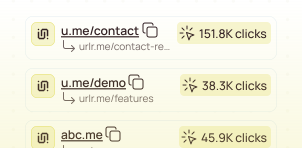
Link shorteners allow you to gather valuable data: number of clicks, geographic location of visitors, devices used, viewing times, etc. This information provides visibility on the engagement generated by your LinkedIn URLs and allows you to adjust your marketing strategy and better target your communication.
Further customize your URLs to strengthen your personal brand
With a link shortener, you can customize the URL by incorporating your name, brand, or a call-to-action. This graphic and semantic consistency helps establish a polished professional image, inspiring trust in your users.
Flexibility and real-time updates of destinations
A short URL generated via a shortener can be modified after its creation, without changing its appearance. This feature is ideal for redirecting your audience to updated pages or different offers without having to distribute a new link. Your communication materials become easier to manage.
Security and compliance in link management
Using a GDPR-compliant link shortener ensures secure management of data collected around clicks. This is particularly important for companies wishing to respect the privacy of their leads without compromising their digital efficiency.
Automation and time savings for professionals
Link shortener APIs allow you to automate the creation and personalization of URLs directly from your internal tools. This automation simplifies your workflow, saves you time, and lets you focus on higher value-add tasks for your LinkedIn and digital activities.
FAQ: answers to frequently asked questions about LinkedIn links
Where can I find my LinkedIn link?
To find your LinkedIn profile link, log in to your account and click on your photo or the ‘Me’ icon at the top right, then select ‘View Profile’. The URL of your profile will then be displayed in the address bar of your browser. You can also find it in the ‘Contact Info’ or ‘Edit public profile and URL’ section to copy or personalize it.
How do I share my LinkedIn link?
Simply copy the URL of your profile and share it directly via email, a LinkedIn message, your social networks, or on your professional materials such as your CV or digital business card. You can also include this URL in the signature of your emails to maximize your chances of being contacted.
How to include the LinkedIn link on a CV?
Add the URL of your LinkedIn profile in the contact or personal information section of your CV. If you’re sharing it in digital form, we recommend incorporating the URL into a LinkedIn icon to facilitate clicking. If you’re printing your CV, you can create a QR code and include it in the document.
How can I share my LinkedIn page?
You can share your LinkedIn page by sending the URL in a LinkedIn private message, an email, or by posting it on your other social networks. To facilitate sharing during in-person meetings, you can also generate a QR code pointing to your profile.
How to simplify the LinkedIn URL?
To make your LinkedIn URL shorter and more professional, use the “Edit public profile and URL” feature available in your profile settings. Replace the automatically generated string of letters and numbers with your name or a simple, recognizable variant. This customized URL is easier to remember and share.
Conclusion
Mastering the use of links on LinkedIn can become a lever to develop your network, enhance your credibility, and energize your professional activity. Whether you’re looking to personalize your profile URL, showcase your space through strategic URLs, or maximize the impact of your posts, every detail matters.
By applying the tips from this guide, which we aimed to make simple, concrete, and tailored to your needs, you will not only improve your discoverability but also the quality of your interactions and the performance of your prospecting. Always keep your links up to date, integrate them into a coherent branding approach, and adapt your communication based on your audience’s expectations.
Finally, don’t forget that your LinkedIn profile is an evolving project: continue to optimize it regularly, stay active and engaged, and experiment with new approaches to remain visible and attractive in a constantly evolving professional environment.